Picture a tutor running an evening study-abroad prep class in a rented room with Wi-Fi that dies whenever the neighbor's class starts streaming. She has found a short, public X post that explains how a citation works in under a minute, posted by a university library with a clear teaching purpose. Playing it live is a gamble. Downloading a copy at the right size the night before is not.
That small scenario, which I am making up for illustration and not reporting as a real case, is the backbone of this review. Education runs on lots of tiny pieces of media: a clip of a chemistry reaction, a two-minute explainer, a GIF showing how a graph is drawn. Teachers and students often lean on social platforms for these, and the platforms are built for scrolling, not for saving. A downloader has to earn its place by solving one boring problem well. Here is how a tool that pulls X videos at several quality levels handles it, where it helps, and where it stops.
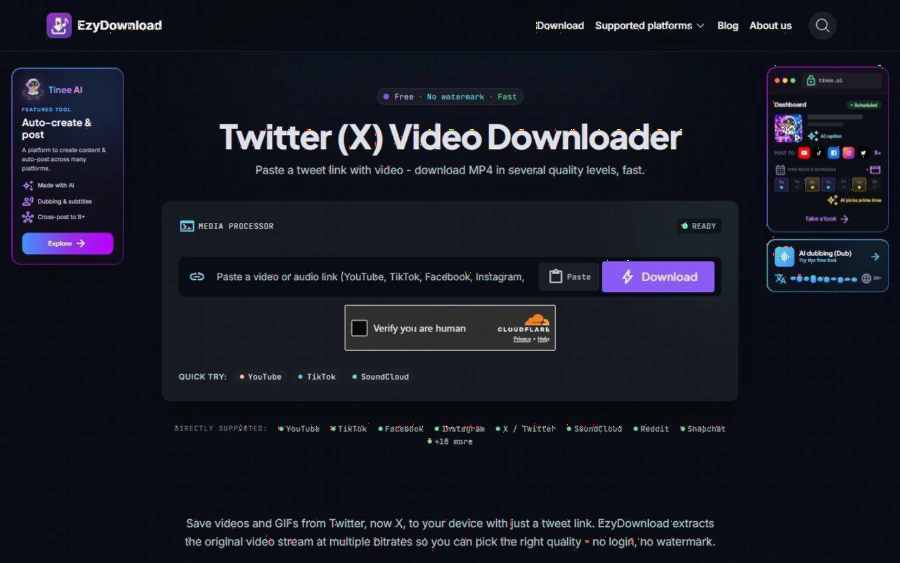
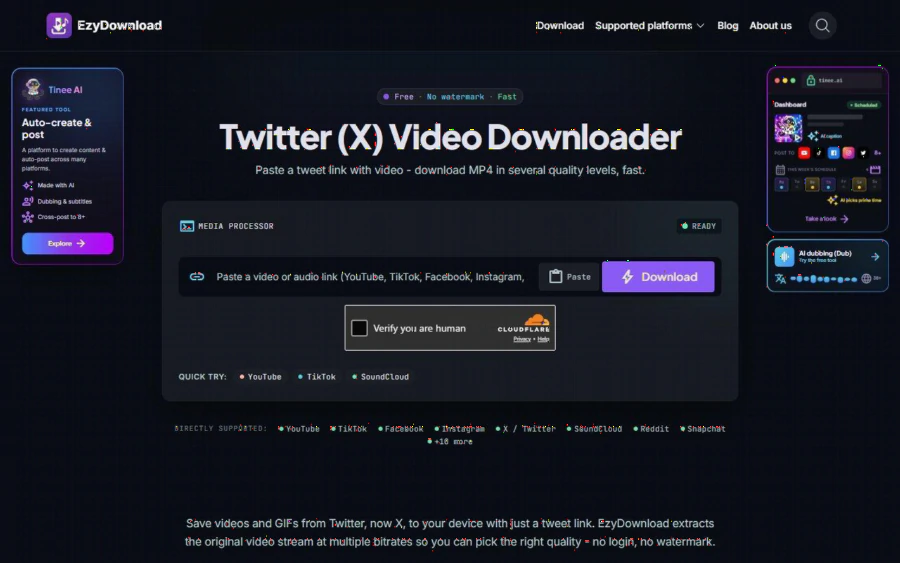
EzyDownload's Twitter (X) video downloader page with the paste box and Download button
What the X page actually does
According to the page itself, EzyDownload's X tool takes a link to a public tweet that contains video and returns an MP4 file. You open the tweet, tap share, choose Copy link, paste it into the box and press Download. Both x.com and twitter.com links work, which matters because older bookmarks and old course handouts still carry the twitter.com address.
Three details on that page are more useful to a teacher than the headline claim of "free, no watermark":
- It lists several bitrates. The site explains that X stores each video at multiple bitrates and that the tool shows them so you can match your connection and your purpose. You choose; it does not decide for you.
- It saves GIFs. The page says it downloads animated GIFs from a tweet, something browsers will not save directly. For a lecturer who wants a looping diagram on a slide, this is the feature that saves real time.
- It needs no login or extension. You paste a link and go. In a shared classroom computer scenario, that means no account to forget and nothing to install on a locked-down machine.
The site's general specifications also mention MP4 up to 4K and audio as MP3 at up to 320 kbps across its 18 supported platforms. For X specifically, the page says video is usually MP4 with H.264, which plays on almost any device without extra software. I would treat 4K as a ceiling and not a promise: you can only get what the original poster uploaded.
Choosing a quality when the Wi-Fi is bad
The X page offers a simple rule of thumb. For phone viewing, a mid bitrate is enough, fast to download and light on the device. For archiving or a big screen, pick the highest bitrate so detail in motion survives.
Translate that to the classroom with a bad connection:
1. Download at home on good internet. The point is to move the heavy part of the job away from the room with the weak signal.
2. Pick by where it will play. A clip shown on a 50-inch projector deserves the top option. A clip students will rewatch on their phones in a crowded bus does not need it, and a smaller file also fits more easily on a cheap storage card or a shared drive.
3. Test one clip first. Play the file on the actual device you will use. If it looks crisp enough to read the labels on a diagram, you are done. If not, go one tier up and download again.
The cost of getting this wrong is small, which is exactly why a quality menu is better than a single fixed output.
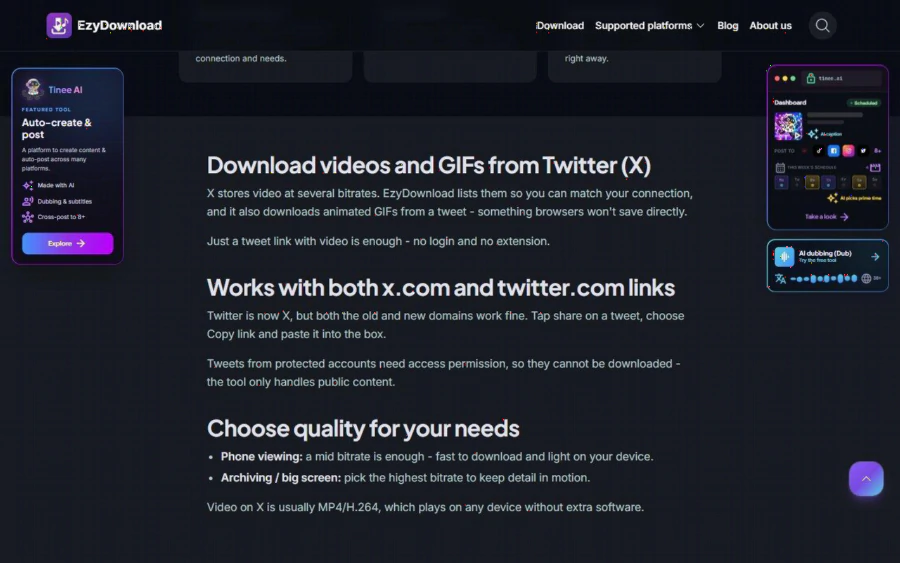
A section of the page explaining bitrate choices, GIF downloads and public-only tweets
Strengths
The honest strengths are the boring ones. The workflow is three steps. The bitrate list gives control without jargon. GIF support covers a gap that most people do not realize exists until they need it. The site states that media is streamed and not kept on its servers after download, and that no logs are kept, which is a reasonable thing for a teacher to want when handling classroom material. I could not verify that claim independently, so take it as the site's statement.
It also does not charge. The site describes itself as completely free with no sign-up and no email required. For a small tutoring center that counts every dollar, that removes the usual question of whether a downloader subscription is worth it.
Limits you should know before you plan a lesson around it
This is where a straight review should slow down.
- Public tweets only. The page says protected accounts need access permission, so the tool cannot download from them. If your source is a private account, a locked class group or a paywalled course, this will not help.
- No guarantee a clip will exist tomorrow. If the author deletes the post, your link is dead. A saved copy solves that only if you are allowed to keep it.
- A human check is part of the flow. On my visit the page showed a Cloudflare "Verify you are human" box under the paste field. It is a minor step, but a teacher on a tight schedule should know it is there.
- The site promotes other products. Much of the surrounding page advertises Tinee AI, a separate content-creation and auto-posting platform. That is promotion, not a part of the downloader, and you can ignore it.
- Copyright is on you. The footer asks users to respect the copyright of the source platforms, and that is not a formality. Saving a video for personal reference, or for a lesson where you have permission, is very different from re-uploading someone else's work. When in doubt, ask the poster, or link to the original post instead of copying it.
Who should use it, and who should not
It suits tutors, lecturers and students who regularly work with short public clips and need them offline: a library's explainer video, a public science account's demonstration, a GIF you have permission to reuse. It also suits anyone who has to prepare material in a place with a weak connection and present it in another.
It does not suit people who need private or subscription content, anyone who wants a full editing suite, or anyone planning to republish clips they do not own. It is a saving tool, not a rights tool.
A simple way to start
You can try the whole workflow in about five minutes:
1. Find a public X post with a short video that you have a legitimate reason to keep, such as a library tutorial.
2. Copy the link from the share menu.
3. Open the EzyDownload home page or the X page, paste the link, and complete the verification box if it appears.
4. Pick a quality that fits the device you will use and download the MP4.
5. Create one folder named for the lesson, rename the file clearly, and note the original post's author and link next to it for credit.
Do that once before the class, not during it. If the file plays smoothly on the room's own laptop, you have solved the problem the weak Wi-Fi created. If it does not, try one bitrate higher or lower and repeat.
In the end, the tool is not magic. It removes one practical obstacle between a good public clip and a classroom that cannot stream, and for a tutor with a projector and an unreliable router, that is quite enough.
